Day 4 — Inventory Migration & First Tool Implementation
Context
Today I migrated my existing inventory system into Scene Graph and created the project’s first real tool.
What I did
Inventory Migration
I took my existing inventory item system (creative_devices) and converted it to be compatible with Scene Graph (components). The migration required rethinking how items are stored, equipped, and managed.
Shovel Tool
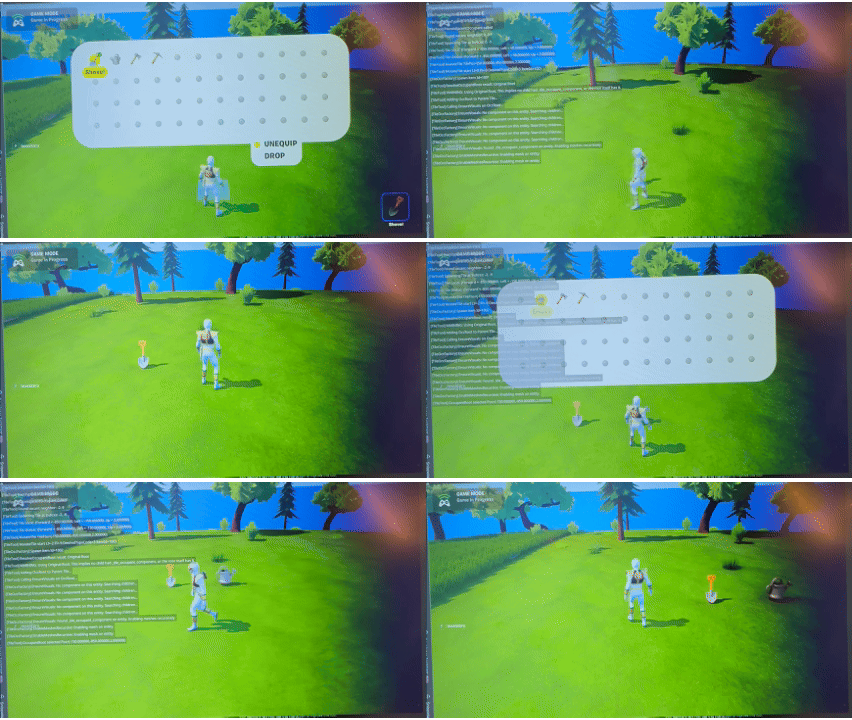
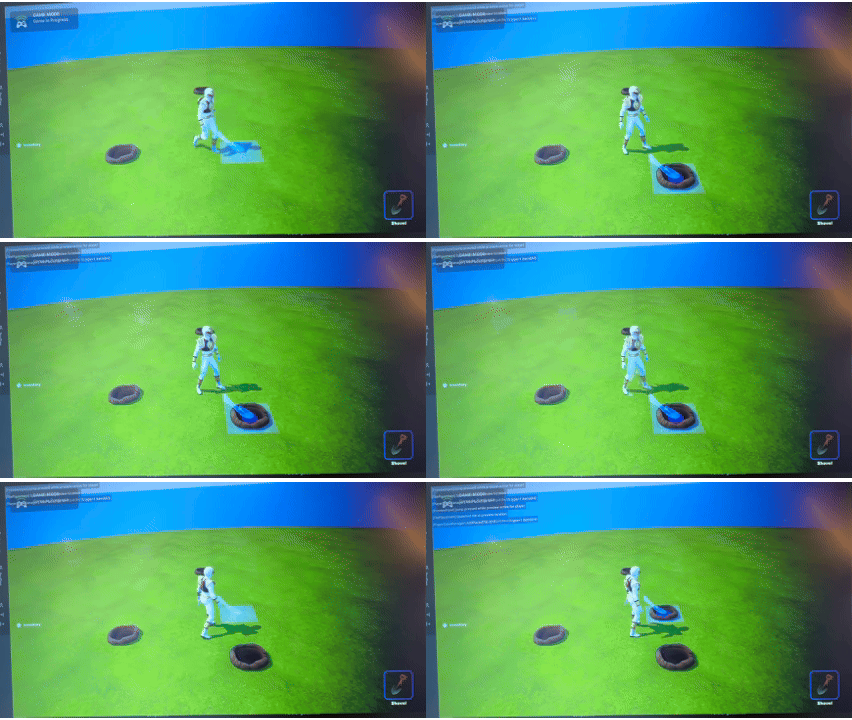
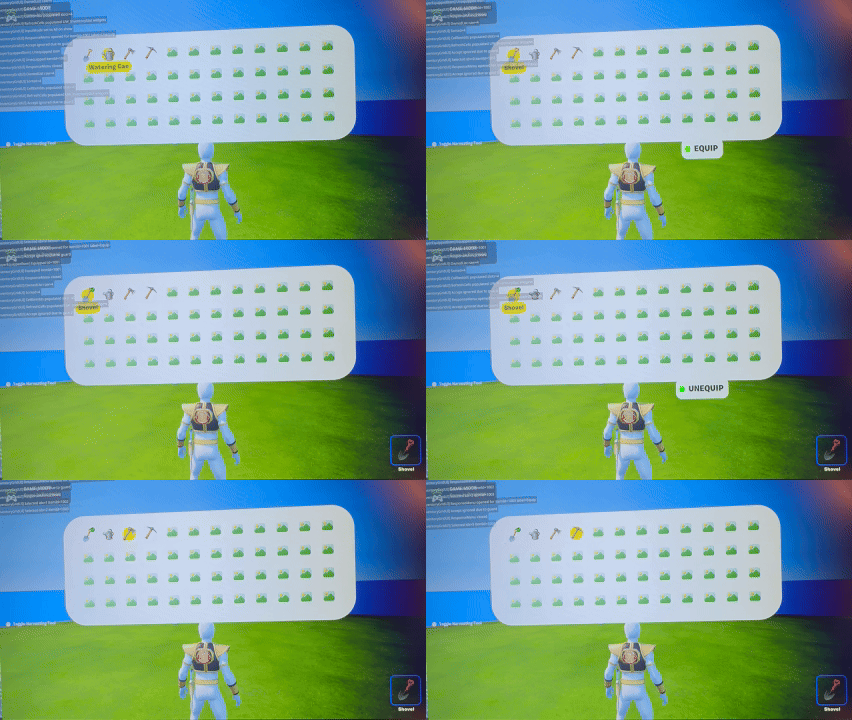
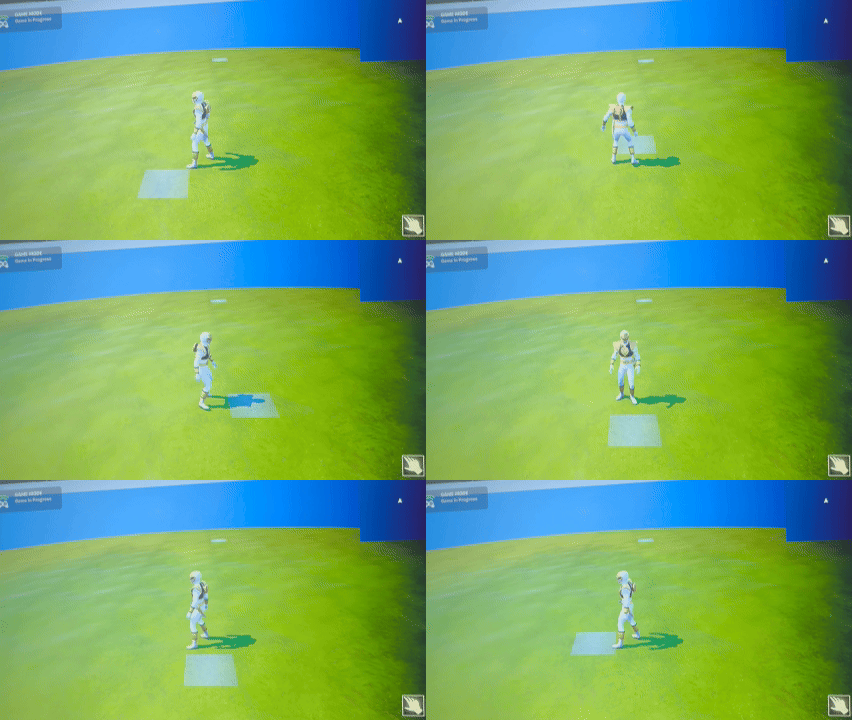
I created the Shovel entity and implemented an equip system. A simple UI helped validate behavior.
With the visual foundation in place, today focused on developing systems that make the island feel persistent and alive.
Date & Time System
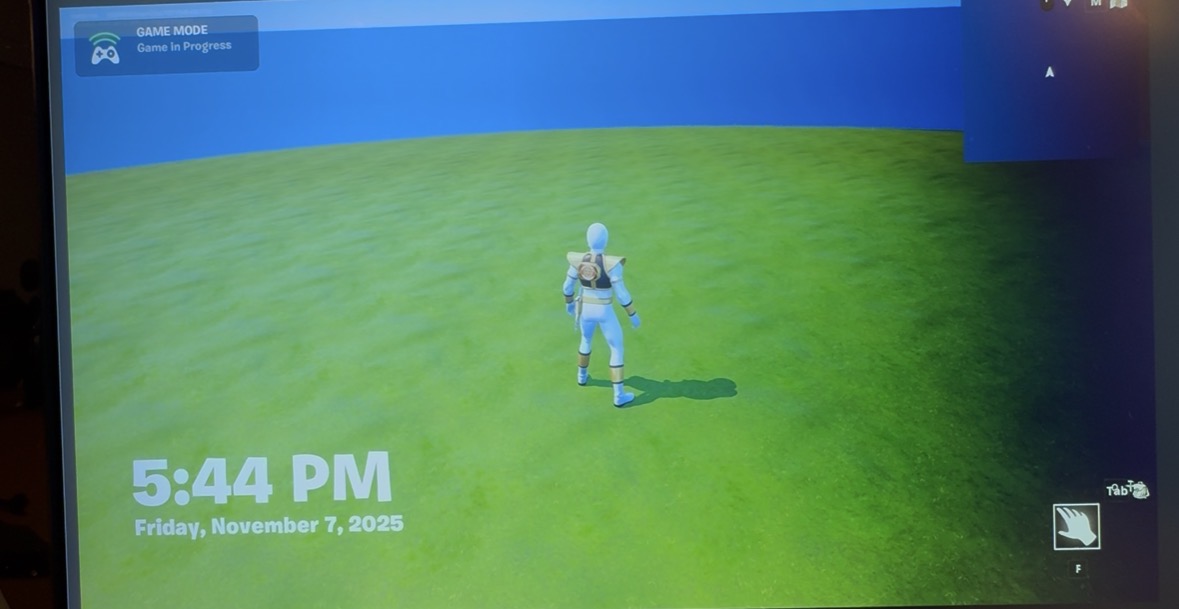
I built the island’s Date/Time system using UMG and Verse. This required experimenting with how data moves between UI and logic, but once everything synced correctly, the system felt stable.
The island now tracks:
Real-world date (Central Time)
Current in-game time
Player inactivity windows
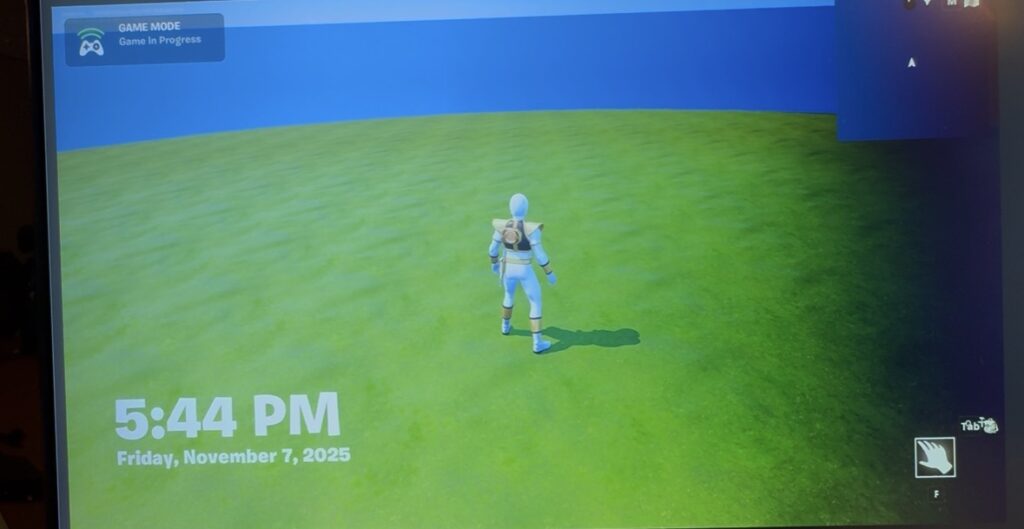
Idle UI with real-time date/time
UMG + Verse Integration
I created a small “Idle UI” overlay to validate that the data was flowing correctly. It wasn’t required, but it helped confirm assumptions early.
Summary
What I accomplished:
Added the foundational Date/Time system.
Connected UMG and Verse for the first time.
Validated UI–logic communication with an Idle UI overlay.
What I learned:
Time systems influence nearly every future mechanic.
There aren’t many cozy, slow‑paced games inside Fortnite, but my family really enjoys them. I wanted to create something in that space—something calmer, more intentional, and inspired by the charm of Animal Crossing. Island Crossing is my attempt to bring that feel into Fortnite while still respecting the constraints and systems of UEFN.
Camera & Controls
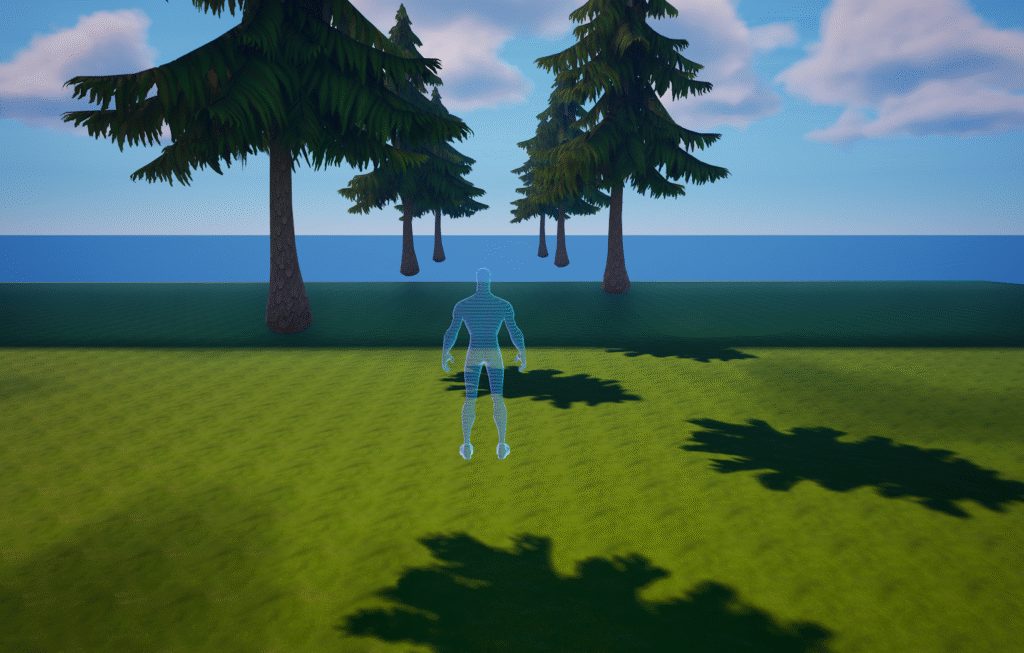
I started by adjusting the camera and third‑person controls to create a perspective closer to Animal Crossing: slightly elevated, pulled back, and wide enough to make the environment feel approachable. Even without gameplay, this shift immediately changed the feel of the island.
Curved World Material
With the camera in place, I moved on to implementing a Curved World material. The setup followed a few good tutorials, but the decision carried a meaningful tradeoff:
The effect relies on modifying the World Position Offset.
That requires raw material access.
Which means standard Fortnite meshes won’t work.
Every mesh that participates in the curvature needs to be custom. It increases production time, but it supports the long‑term goal of giving the island a distinct, handcrafted identity.
Early Technical Hurdle
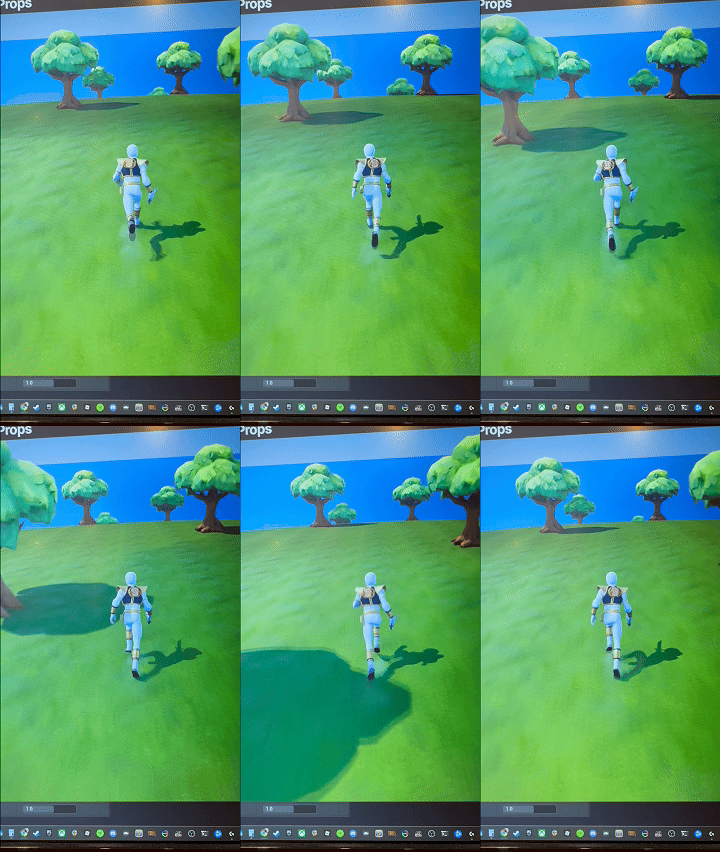
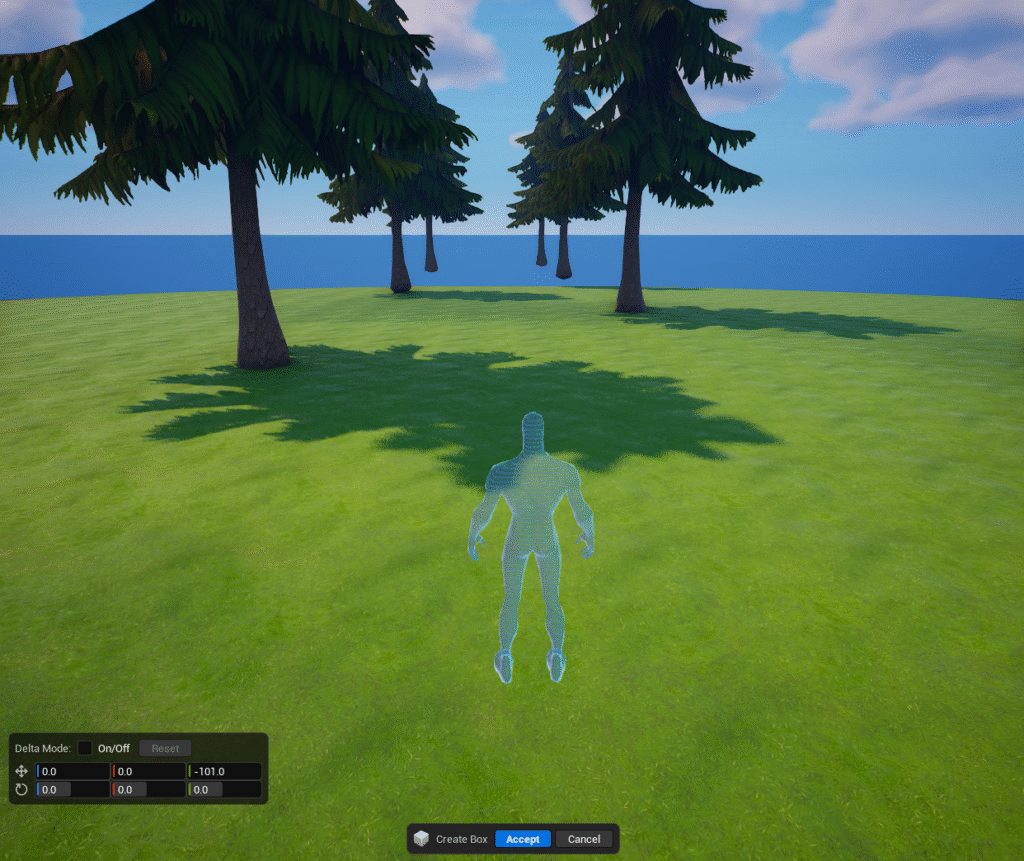
During testing, the ground mesh was unexpectedly sinking. After some debugging, the cause became clear: the mesh only had a single subdivision, leaving the deformation with almost nothing to work with. Increasing it to fifty subdivisions produced the curvature I wanted.
A simple fix, but a good reminder that WPO‑driven deformation is entirely dependent on underlying geometry.
Curved World material with 1 subdivisionCurved World material with 50 subdivision
Summary
What I accomplished:
Established the camera angle and controls for a cozy, readable view.
Implemented the Curved World material.
Identified and resolved a mesh deformation issue caused by low subdivision density.
Evaluated long‑term implications of relying on custom meshes.
What I learned:
Visual direction decisions often introduce lasting architectural consequences.
WPO effects require careful mesh preparation to avoid artifacts.
Early camera work pays off immediately—perspective defines tone before mechanics even exist.
Bomber Blocks is a Bomberman‑style experience built in Fortnite using UEFN and Verse. This project was my chance to take lessons from earlier work (e.g., my Roblox experience Bomber Buddy) and from systems I began in Mega Jump Simulator (modular UI, inventory, rewards), and apply them to a clean, scalable architecture.
This post is a technical design review. It focuses on how the game is structured under the hood: procedural map generation (“Environments”), NPC behavior, match flow, inventory and rewards, voting, and a shared UI stack. The goal is to show how these systems fit together to make iteration fast, live ops practical, and player experience consistent—without relying on ad‑hoc scripts.
If you’re evaluating technical designers/UEFN developers, this should give you a clear sense of my approach: build reusable foundations, minimize friction for iteration, and design for long‑term sustainability while staying faithful to the core Bomberman loop.
1. Procedural Grid + Environment System
The battlefield in Bomber Blocks is built procedurally at the start of every match. Instead of manually laying out tiles or environments, I rely on a set of flexible, editor-driven definitions to generate grid-based maps that change every round.
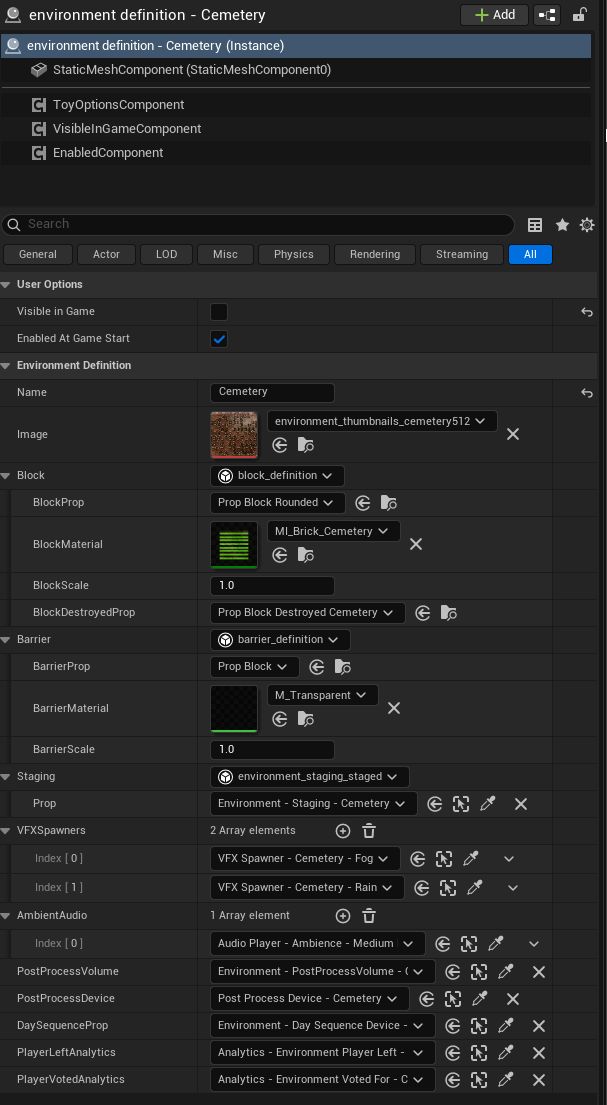
At the core of this system are two Verse scripts: block_handler and environment_definition, both connected through the environment_manager device.
How It Works
Pick an Environment (Map) – The environment_manager selects which “map” to load. Each environment defines its own props, materials, and tile behavior.
Build the Grid Procedurally – The block_handler takes parameters from the environment and constructs a randomized, yet fair, grid of blocks:
Solid blocks (“Barriers”)
Breakable blocks (“Blocks”)
Empty tiles
Powerup-eligible spaces
Apply Theme-Specific Props and Materials – Each tile’s visuals and behavior come from the active environment.
This structure means designing a new map is simple: just drop a new environment_definition device into the Editor, configure its @editable settings (like which blocks are solid vs breakable, or which props to spawn), and add it to the manager’s Environments array. No code changes required.
Why This Matters
Rather than hardcoding maps or tiles, this setup lets me:
Quickly prototype new “themes” or maps
Adjust block density, powerup frequency, or tile types without touching code
Reuse the same logic across all maps while keeping them visually distinct
These kinds of @editable settings allow me to shape each map’s feel—and even tune gameplay—without needing to touch my underlying Verse logic. It’s designed for flexibility, iteration, and long-term scalability.
2. NPC Behavior System
In Bomber Blocks, NPCs aren’t just random movers—they’re designed to feel like real players, complete with priorities, personality, and situational awareness. From evading blasts to contesting powerups, each NPC responds dynamically based on what’s happening in the game.
How NPC Behavior Works
Each NPC is managed by a central npc_manager device, which initializes and tracks behavior scripts (bomber_npc_behavior) for every bot in the game. These behaviors aren’t just simple logic loops—they’re state-based systems that adapt to the grid and player actions.
Each bot cycles through several key states during a match:
Evade – Detects nearby blasts and moves to safety
Place Bomb – Identifies when blocking or trapping an enemy makes sense
Chase/Contest – Pursues players or powerups when advantageous
Roam – Default logic when no immediate danger or high-value targets are nearby
Item Acquire – Seeks out unclaimed powerups in nearby tiles
Retreat – Pulls back to safer ground when low on options or cornered
Stuck Resolve – Detects when the bot is blocked or looping and corrects course
Debug-Driven Development
NPC behavior was developed with deep debugging support in mind. Each state has its own toggle so I could visually track when and why an NPC entered a state, making it easier to fine-tune transitions and avoid deadlocks or unintended loops.
The combination of granular states, responsive logic, and debug tools makes these NPCs feel lively—and keeps matches exciting, even when player slots aren’t full.
3. Game Flow Management (Game Manager + Game State System)
In Bomber Blocks, every match is controlled by a single Verse-driven device: game_manager. This acts as the conductor for the entire game loop, handling what players see, when NPCs activate, and how the game transitions from one round to the next—without needing multiple triggers or manual resets.
Match Lifecycle
The game follows this predictable but flexible sequence:
Setup → Match → Cleanup → Voting → Repeat
Each phase is defined in its own game_state class, with transitions driven by a custom Verse timer_device replacement (custom_timer_device) for better UI control and animation. This lets the game:
Display custom countdown timers with animated digits
Show or hide timers based on game context (e.g., only during match start/end)
Snap between states instantly, without client-side lag or artifacts
Player Handling
Late Joiners: Players who join mid-round are dropped into spectator mode, without interrupting the live match
Eliminated Players: When a player is knocked out, they instantly switch into a spectator state—but still have access to their inventory and point-earning systems
The game_manager not only handles the match logic but also coordinates with the UI and inventory systems, meaning every round feels complete and connected, even as players come and go.
4. Inventory Item System
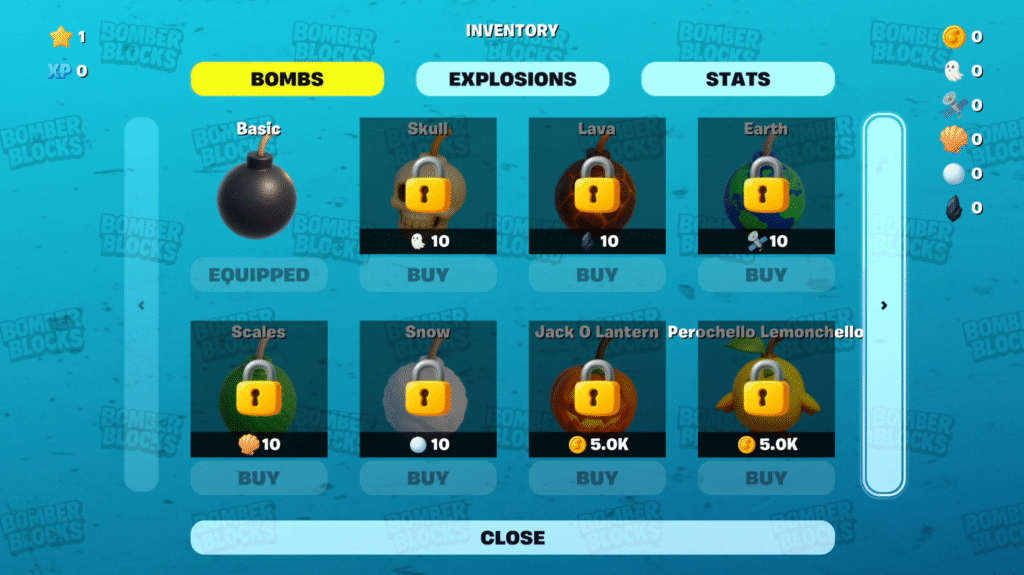
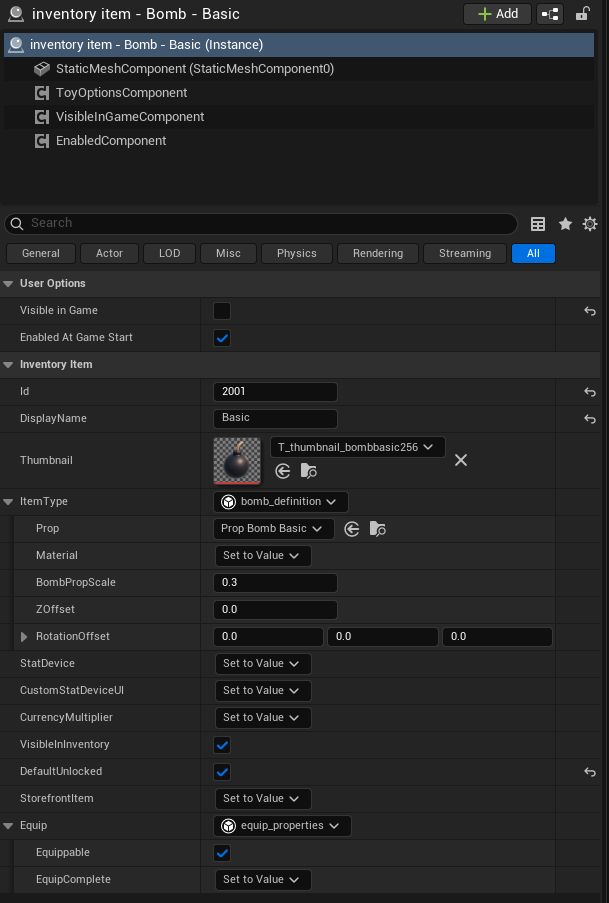
The Inventory Item System is a shared data layer for anything that can belong to a player—tangible or intangible. In Bomber Blocks, that means four item types: Bombs, Explosions, Currencies, and Stats. Each item is a small, editor-driven device with consistent fields (e.g., Id, DisplayName, Thumbnail, ItemType) and optional UI hooks, which makes the whole system easy to scale and reason about.
Bomber Blocks – Inventory
Why this exists
Instead of hard‑coding separate code paths for “bomb skins,” “explosion skins,” “coins,” or “playtime,” the system gives all of them a common contract. That lets other systems (like Rewards or UI) subscribe to changes once and work across types without custom glue each time.
How it’s modeled (high‑level)
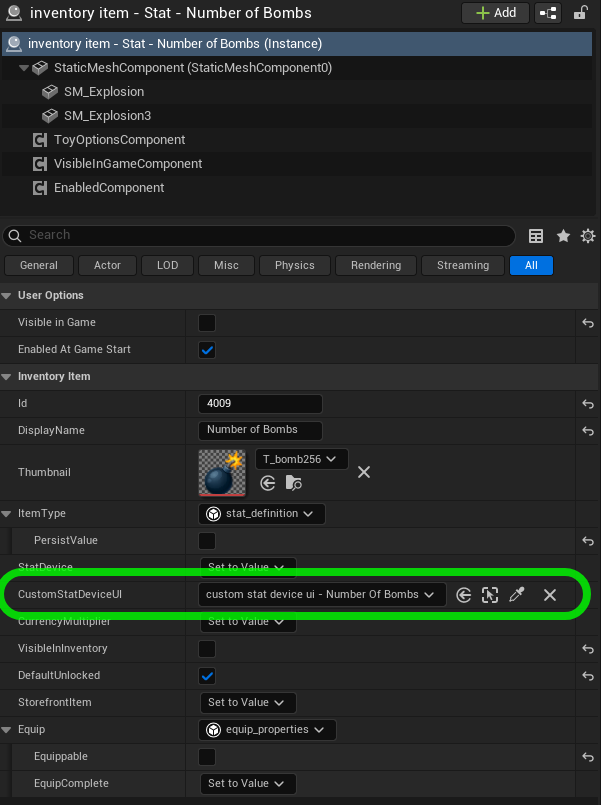
Item device (inventory_item): Editor‑authored definition (id/name/icon/type), optional stat link for displaying values, optional custom UI widget, optional currency multiplier.
Type definition (inventory_item_type + concrete types): Declares behavior and persistence at the type level. In Bomber Blocks:
Currency: Points to a currency manager; values are typically persistent.
Stat: Generic counters (e.g., eliminations, playtime); can be persistent or session‑scoped.
Manager (inventory_item_manager): Single place that registers items, mirrors value changes into UI, and exposes helpers to get/set values per player. It hydrates values on join and updates UI without you wiring every case by hand.
What this unlocks in practice
One update path for Rewards: When a Stat changes (e.g., Eliminations), the Rewards system can listen once and evaluate definitions—no need to sprinkle “check rewards” calls all over gameplay code.
Rapid UI wiring: Items can carry an optional custom stat UI reference; the manager attaches and updates it per‑player, formatting values and auxiliary text (e.g., currency multipliers) automatically.
Editor‑first authoring: New items or types are added as devices and registered at runtime—no refactors to integrate a new currency or stat.
Future‑proofing: The same data model works across projects (e.g., Trails/Back Items/Currencies/Stats in Mega Jump Simulator) while Bomber Blocks focuses on Bombs/Explosions/Currencies/Stats.
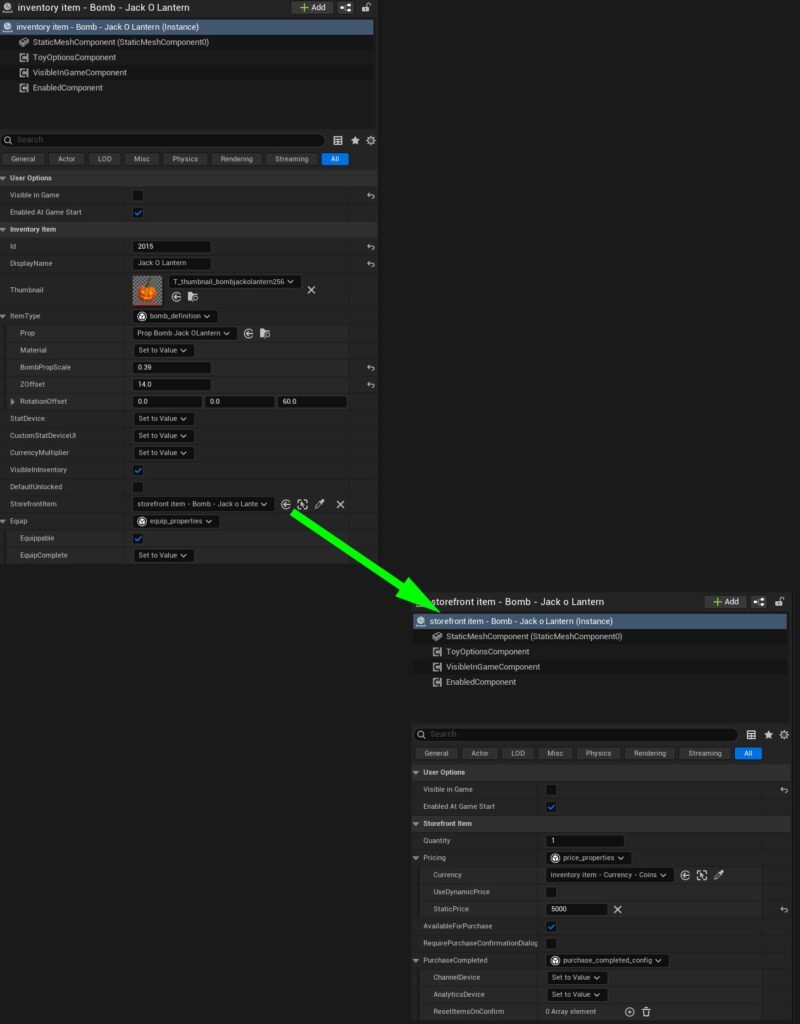
Storefront Link (Purchasable Items)
Some items are earned through rewards; others can be purchased. To keep this clean, a storefront_item is created and linked to an inventory_item. The storefront_item handles the transaction rules (what currency, how much, static vs dynamic price, quantity, confirmation), while the inventory_item remains the single source of truth for the item’s identity and visuals. In practice, you:
Create or reference the currency as an inventory_item
Define a storefront_item with that currency + pricing
Link the storefront_item to the inventory_item you’re selling
This keeps purchase logic out of game logic and makes new purchasable items mostly an editor task rather than new code.
5. Reward System
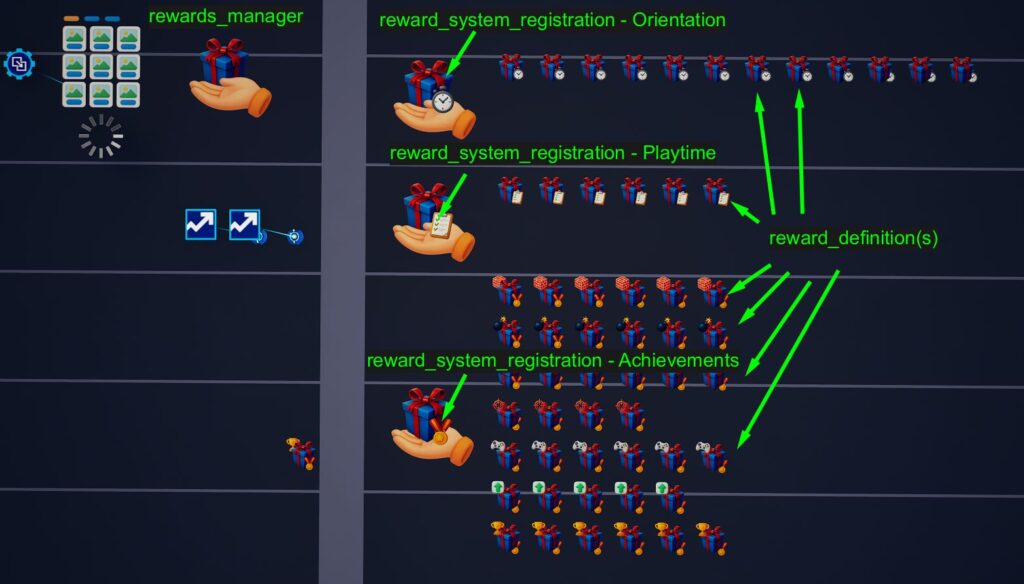
The rewards layer connects player actions to tangible gains without hard‑wiring checks all over gameplay code. It’s built from three parts:
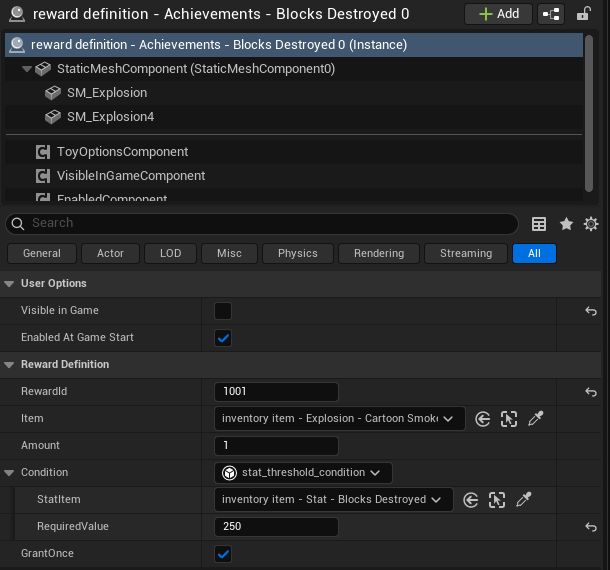
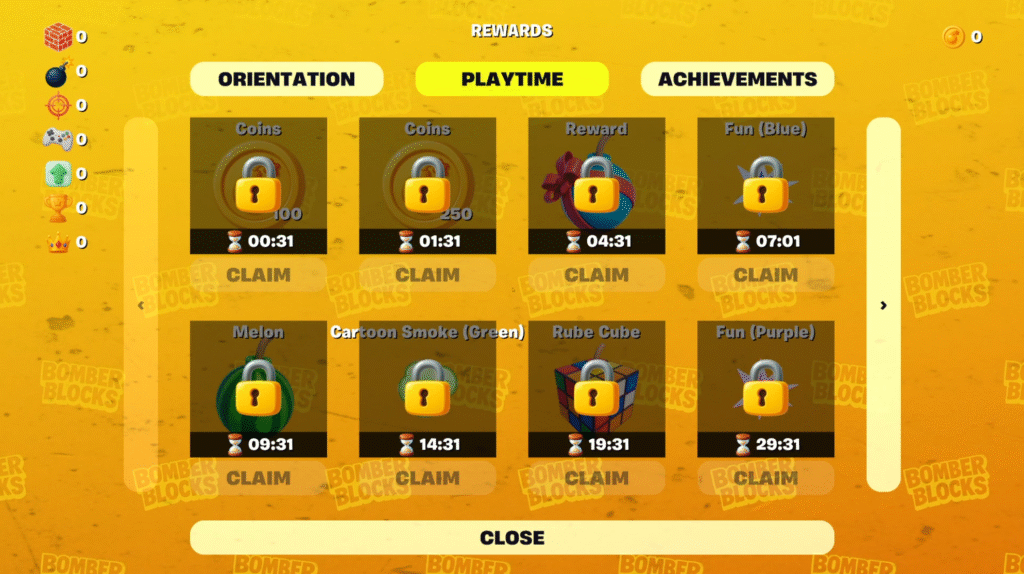
reward_definition** (device):** What the reward is (the item + amount) and the condition to earn it (e.g., reach X Eliminations). Conditions read progress from the Inventory Item System (Stats like Eliminations, Playtime, Level, XP).
reward_system_registration** kinds:** Logical groupings like Orientation (Tutorial), Playtime, Achievements—and a Progression kind available for tiered/season‑pass‑style tracks.
rewards_manager** (device):** The orchestrator. It evaluates conditions, updates UI, handles claim states, plays SFX/notifications, and grants items through the Inventory Manager.
creative_devices in the editor scene
How it works at a glance
Define rewards in the editor. Each reward_definition points to an inventory_item (the thing you grant: currency, cosmetic, stat bump) and a condition (e.g., stat_threshold_condition on a Stat item like ‘100 Eliminations’ or ’60 minutes of Total Playtime’).
Register them under a system. A reward_system_registration groups definitions into a system type (Orientation, Playtime, Achievements, or Progression) and optionally wires a specific dialog_grid_ui and notifications when the player has a Reward to claim.
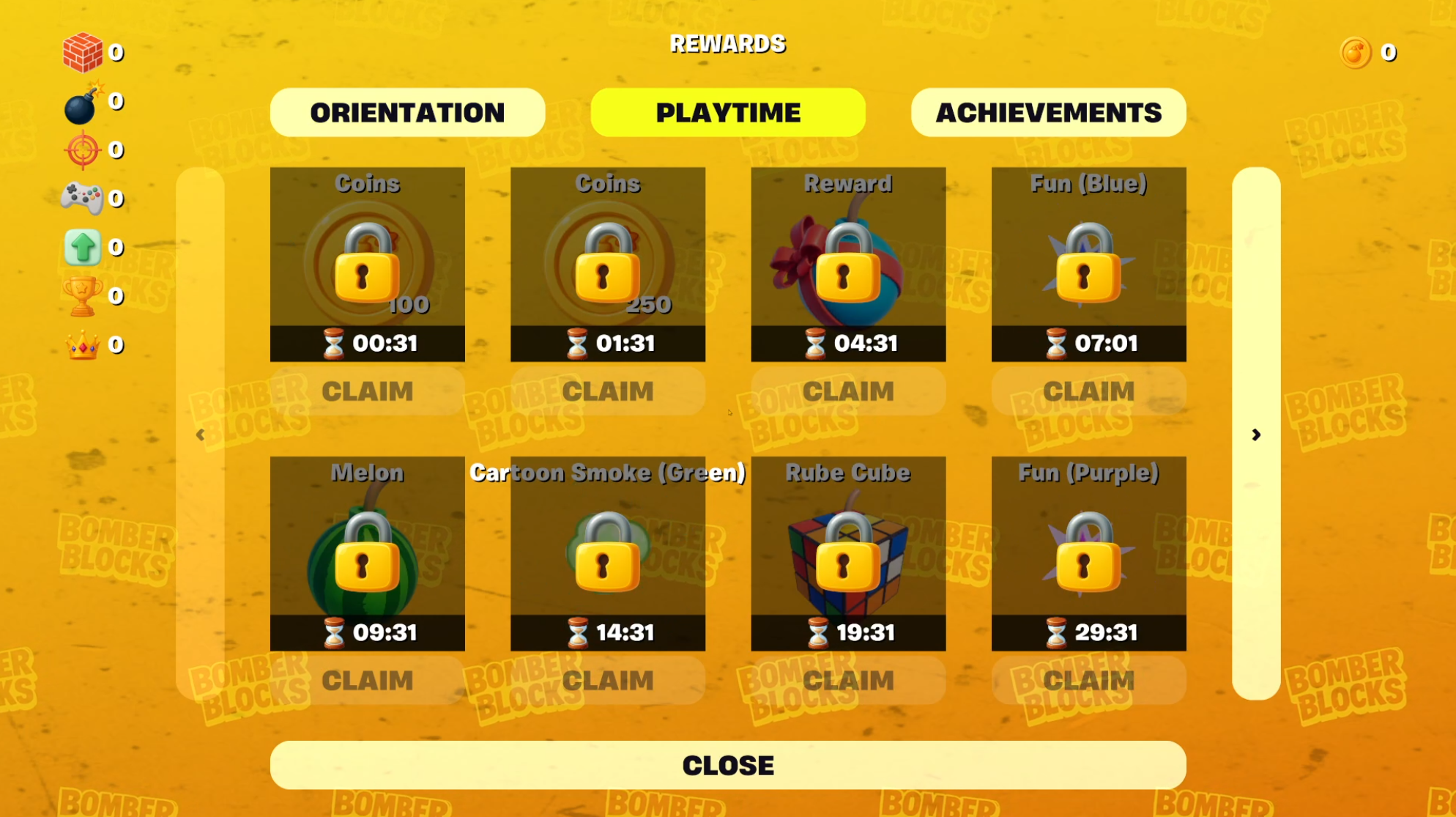
Manager drives the loop.rewards_manager evaluates progress, marks items Locked / Earned / Claimed, pushes row data into the grid UI, and grants via inventory_item_manager when a player claims. It also supports per‑row availability notifications and a playtime countdown that keeps ticking even with the UI closed.
Why this solves real problems
No duplicate glue code: Gameplay only updates Stats (e.g., “Elims += 1”). The Rewards layer observes those Stats and unlocks rewards automatically.
Editor‑first authoring: New rewards are devices—drop them in, set the condition, and they show up in the correct tab with no code changes.
Responsive UI: Uses the same Verse‑UI stack (Dialog Grid UI). Rows show current progress, target, lock state, and a single CLAIM action (or CLAIMED for one‑time grants). Icons/material previews are selected automatically from the item type (e.g., Explosion previews use an animated material).
Live‑ops friendly: Systems can add Orientation onboards, repeatable Playtime grants, achievement ladders, and (if desired) a Progression / Season Pass track—without refactoring the core game.
Notable implementation details
Forced unlock on countdown zero (Playtime): If a time‑gated row hits 0, it becomes claimable on the UI immediately—even if the stat update lags a tick—so players aren’t blocked by timing.
Per‑item notifications: Optional notifications fire when a specific row becomes claimable and clear when it’s no longer available.
Claim effects: Currency grants increase balances; non‑currency grants also set ownership, so those items appear unlocked in inventory/store UIs on refresh.
Bomber Blocks – Rewards
6. Voting System
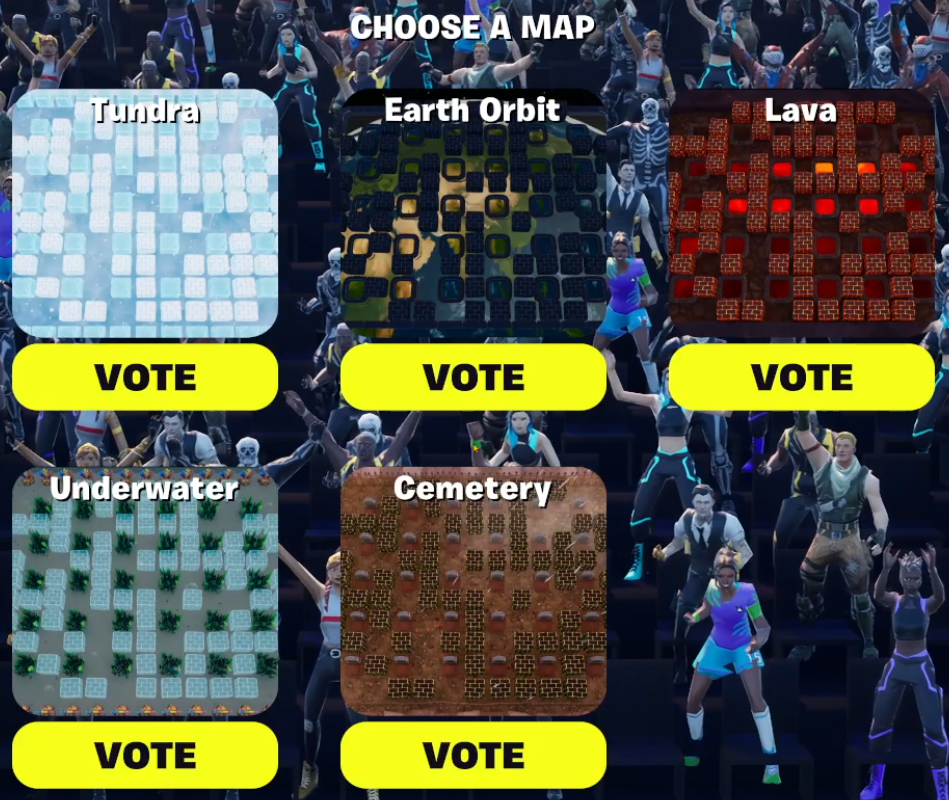
The voting flow lets players pick the next map (environment) using a UI‑first approach, rather than world‑space buttons. It’s intentionally lightweight and fast so it fits between rounds without derailing the loop.
What it does
Presents N options (configurable) for the next environment and lets each player cast one vote.
Options can be randomized per vote session, and the system prevents duplicate picks when sampling.
Votes are tallied per environment; ties are broken at random among the leaders.
How it works (high‑level)
Owner‑driven timing: game_manager starts/ends the vote and passes in the candidates via SetEnvironmentOptions(...).
UI: Uses dialog_grid_ui entries that are zero‑cost, always clickable, and styled as a clear VOTE action (no lock/cost overlays).
Result: ApplyWinningSelection() computes the winner (with tie‑breaker) and stores it; game_manager then applies the environment index on the next round.
Analytics: When a player votes, the system submits an event through the chosen environment’s analytics device.
Current scope & trade‑offs
Today, the voting entries are hard‑wired to environments (maps). That decision let me ship quickly and collect real player preference data tied to map‑exclusive currencies. The class is structured so it can be generalized later to vote on other kinds of options without changing the UI mechanism.
Bomber Blocks – Map Voting
7. Custom UI Systems
The UI stack in Bomber Blocks is designed to support a wide range of use-cases—storefronts, stat overlays, reward grids, prompts—without having to rebuild UI each time. It’s as much a technical framework as it is a UX tool.
What these systems solve
Faster iteration: No need to rebuild or “Push Changes” to test layout or logic changes.
Shared patterns, unique screens: Inventory, rewards, voting, stats—they’re all rendered with the same Verse-driven UI system.
Editor-defined visuals: UI components are placed in the editor but updated dynamically through Verse, keeping iteration smooth.
Key Devices & Use Cases
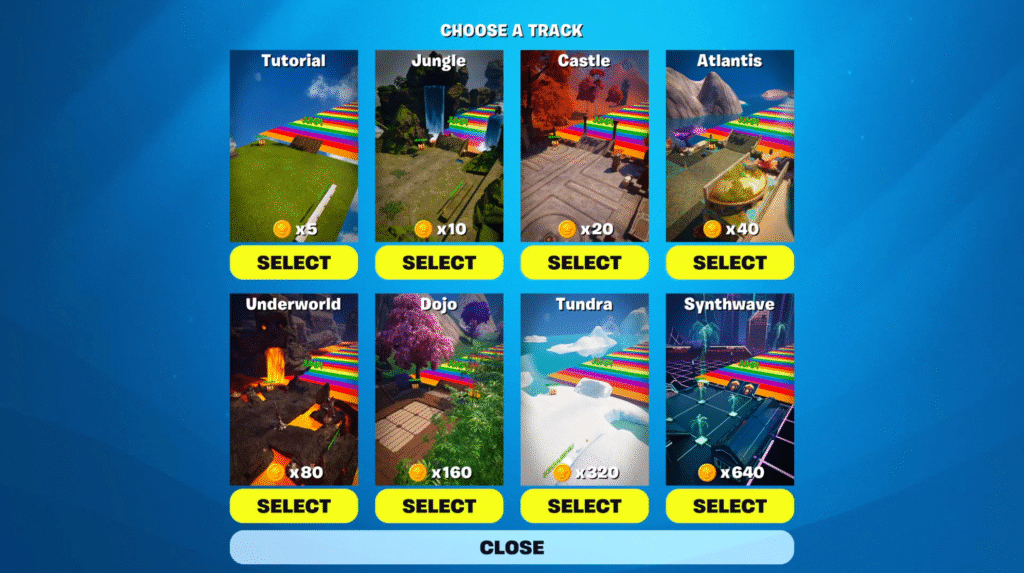
dialog_grid_ui – Renders large item lists like inventory grids, reward tabs, and voting prompts, with pagination and conditional lock states.
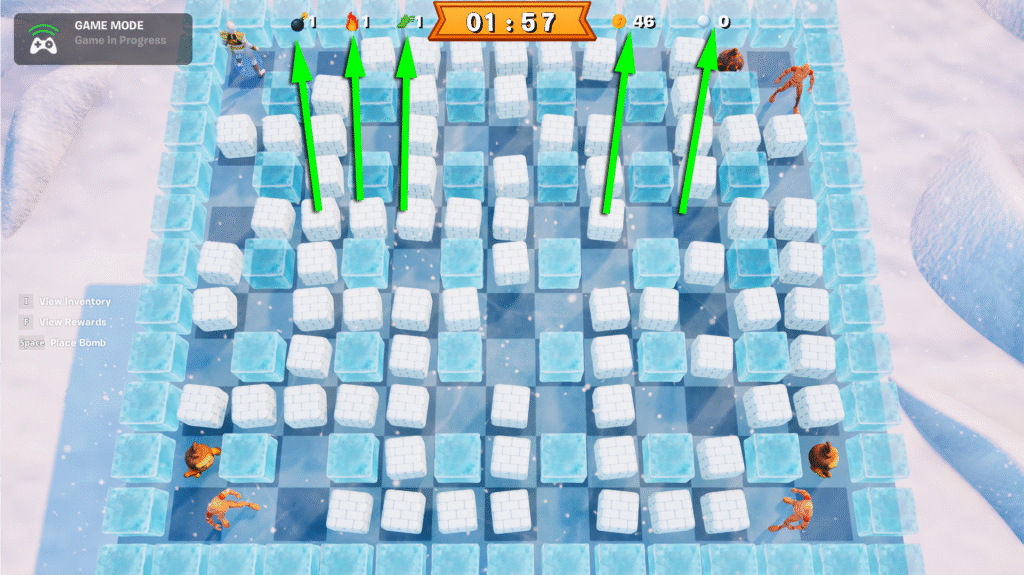
custom_stat_device_ui – Allows placing stat displays in the editor (e.g., currency, eliminations) and dynamically showing/hiding them through Verse.
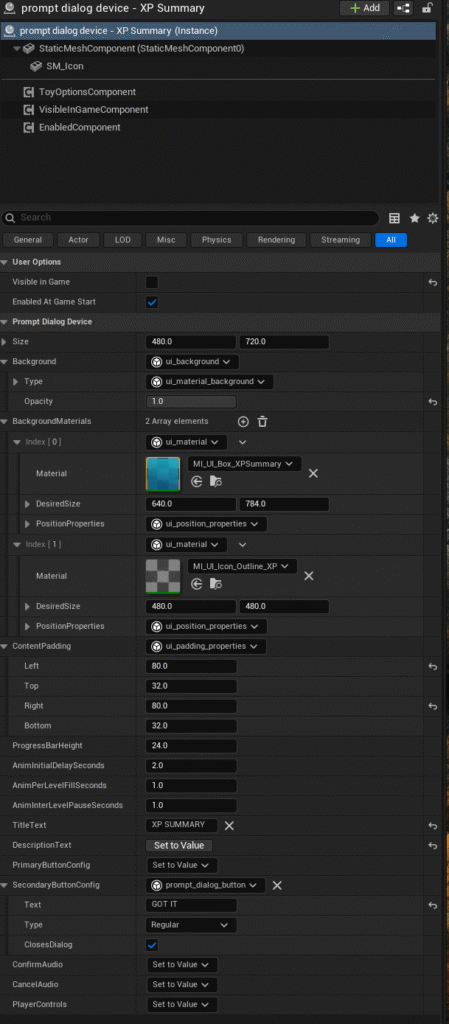
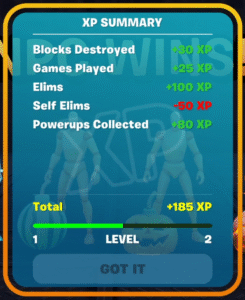
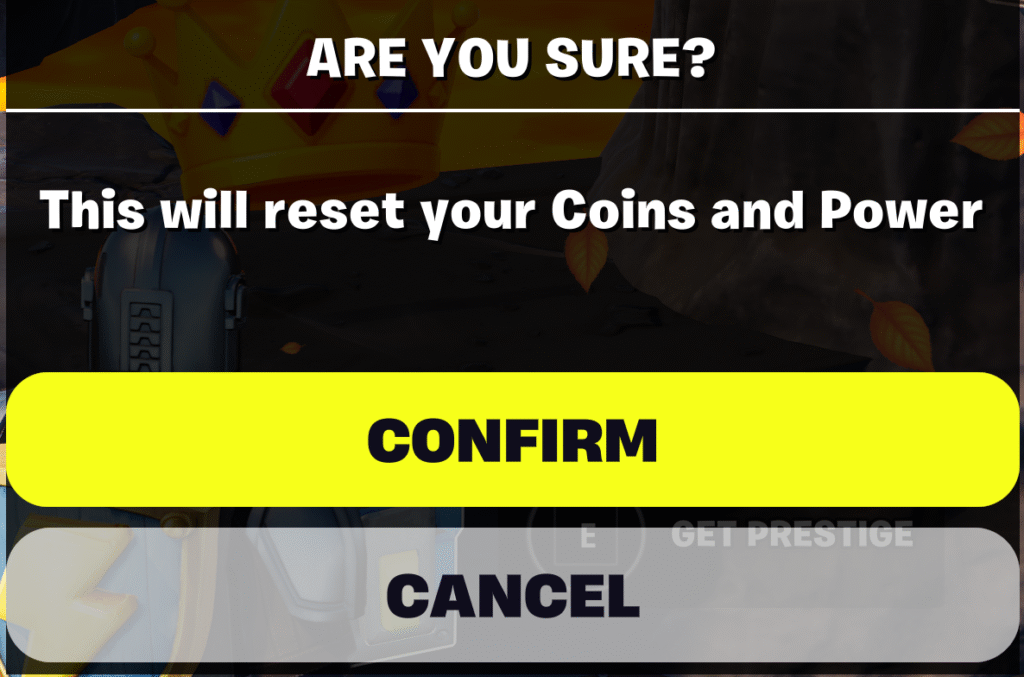
prompt_dialog_device – Pop-up dialogs for purchase confirmation, teleport prompts, reward claims, etc.—all share one reusable layout.
Prompt Dialog Device
How it works
Author the layout in the editor (drag UI devices into the scene, set icons/text/positions).
Bind to live systems via Verse: Once the UI initializes, it requests data from systems like Inventory, Rewards, or Voting.
Separate layout from logic: Add a new screen by defining fields in the editor; hook it up through Verse without creating bespoke UI or widgets.
Why this matters
Common UI patterns—like grid rows, confirmation prompts, and stat displays—are solved once and reused everywhere. This means:
Bomber Blocks isn’t just a game—it’s a long-term investment in scalable systems and efficient workflows for UEFN. From procedural map generation to a unified inventory and rewards ecosystem, the project demonstrates how thoughtful technical architecture can unlock faster iteration, more content, and smoother live operations.
The modular systems outlined here aren’t one-offs—they’re adaptable frameworks built for reuse across future projects. Whether it’s onboarding new rewards, swapping in UI layouts, or adding whole new environments, the structure is set up to support more features with less friction.
If you’re looking for someone who can blend strong technical design with scalable live ops strategy—and isn’t afraid to dive deep into Verse to get it done—I’d love to collaborate. Let’s build something remarkable together.
Building UI in UEFN using Widget Blueprints can feel slow and limiting, especially when your workflow requires lots of iteration. Every time you make a change, you’re waiting 3–5 minutes for a full “Push Changes” cycle. If you’re making dozens of updates per project, you’ve easily lost 45-60 minutes per day.
Me when “Push Changes”
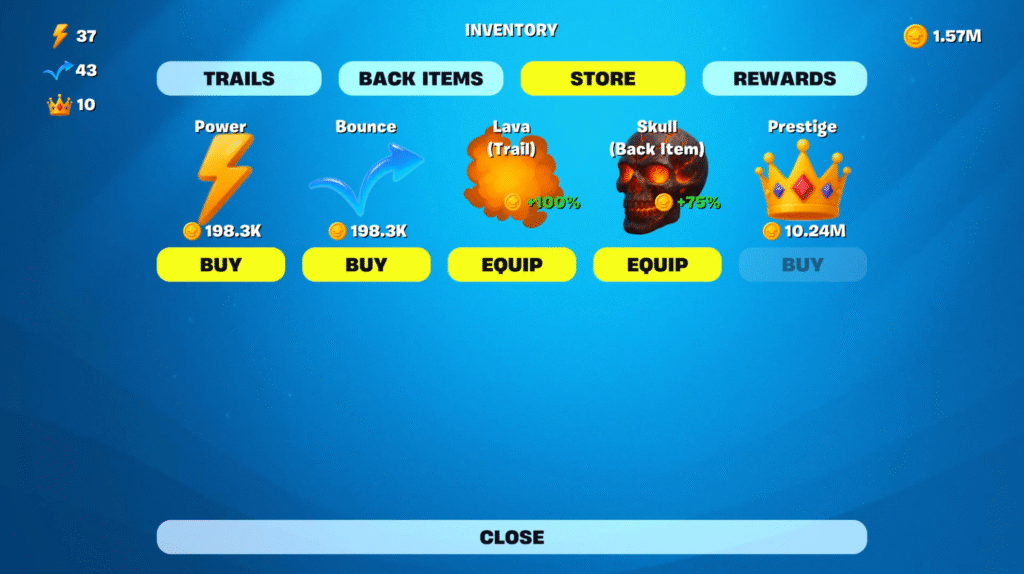
That’s why I started building UI directly in Verse. My goal wasn’t to replace all Blueprint Widgets overnight but to solve the real problems that UI in UEFN wasn’t handling efficiently: large item lists, dynamic stats, currency updates, reusable layouts, and on-demand prompts.
The result is a flexible, modular UI system powered by Verse that’s now been tested in multiple live projects.
The Problem With Blueprint Widgets
In projects like Ultimate Capture The Flag, Mega Jump Simulator, and Bomber Blocks, I needed UI that could:
Show dozens of items at once with pagination or tabs
Display player-specific data (like currency or item ownership)
Let me show or hide UI elements based on different game states
Update in real time when something changes (like earning a new reward)
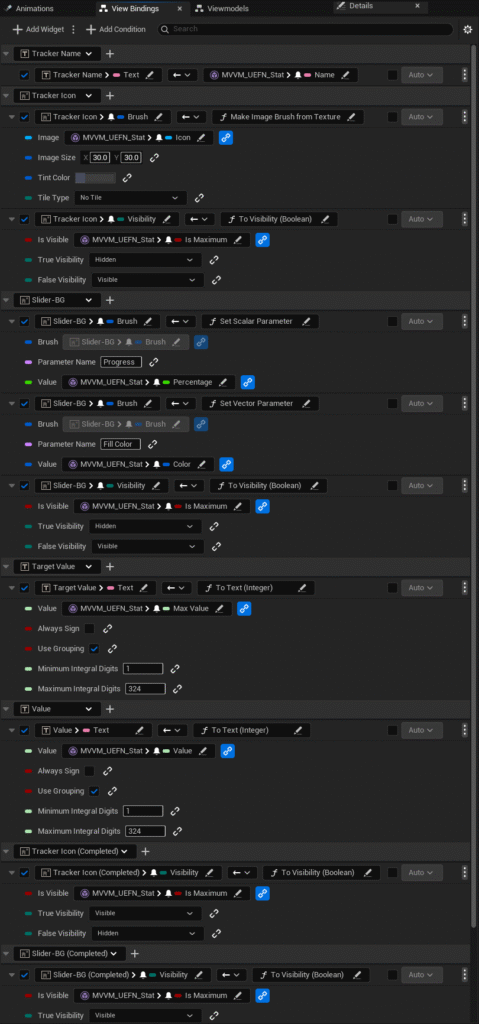
Complicated, unscalable Bindings needed for each Widget Blueprint
Blueprint Widgets couldn’t keep up. And the slow iteration time made creative experimentation more difficult. 💡 That’s when I figured: if I’m going to spend this much time iterating with Widget Blueprints, I could invest that same time into a Verse-powered system that would save me far more time in the long run. So I started building UI that could still be composed visually in the editor but powered dynamically through Verse logic.
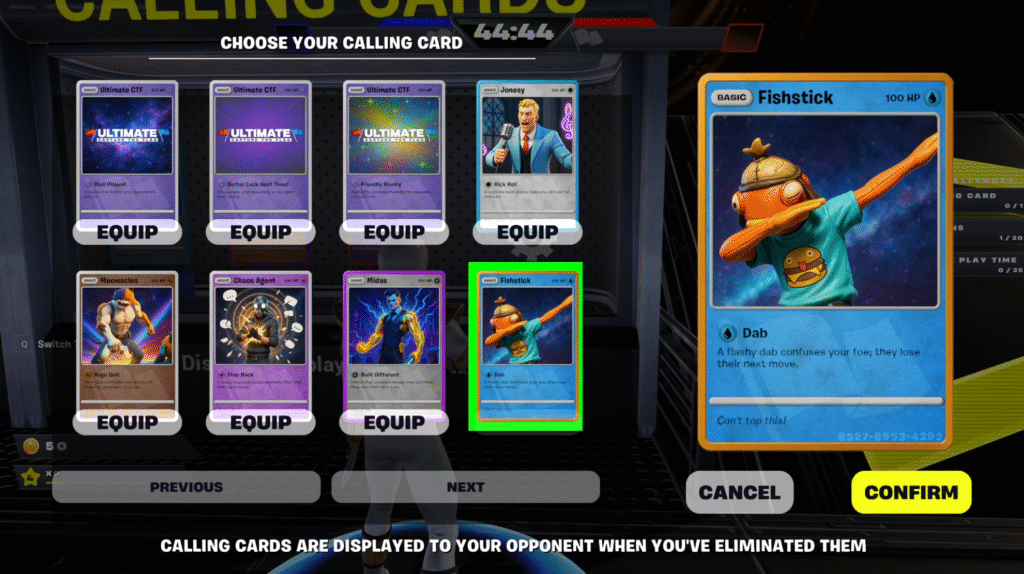
Created originally for Ultimate Capture The Flag, this UI system supports an infinite list of items with pagination. It’s now in use in three islands, powering things like:
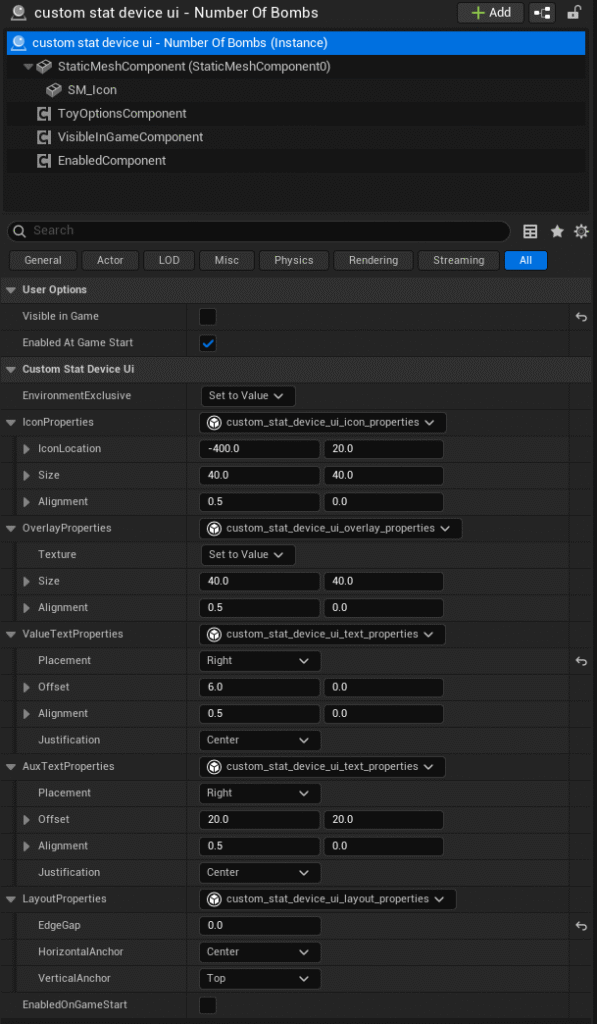
The built-in “stat_creator_device” always shows HUD stats, whether you want them to or not. I needed something more flexible, so I built a stat display system in Verse that lets me control visibility and content dynamically without sacrificing the visual components. Most of the properties you’d define in the Widget Blueprint are available in the editor, but you have the power of Verse to Show/Hide it dynamically.
Custom State Device UIInventory Item (Custom Stat Device UI)Bomber Blocks – Custom Stat Device UI
This saves me from needing a new pop-up Blueprint every time I want the player to confirm something. It’s controlled through Verse, so updating the text, buttons, or style only takes seconds. Useful for purchase prompts, teleports, or reward notifications.
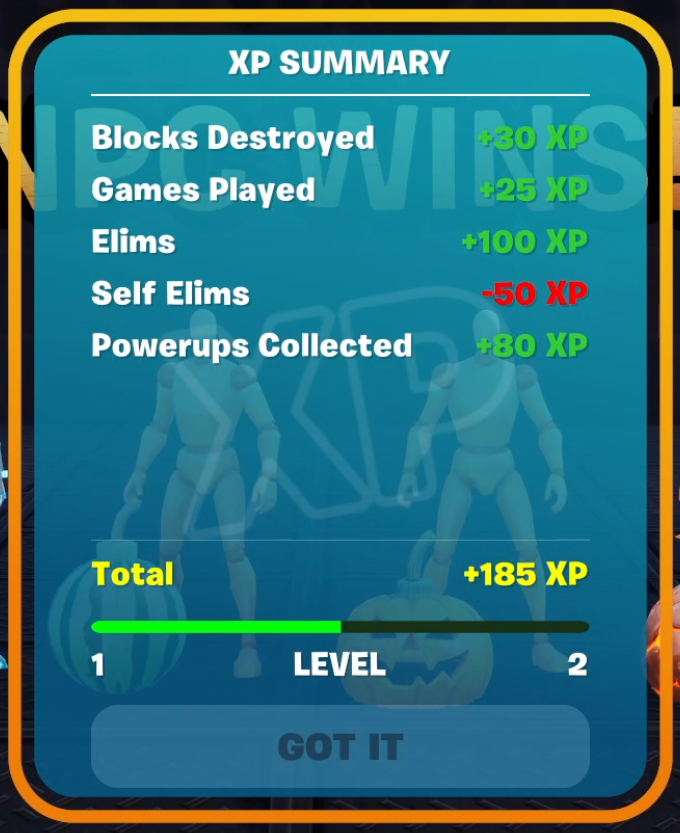
Mega Jump Simulator – Prompt Dialog DevicePrompt Dialog DeviceBomber Blocks – XP Summary
What Still Needs Work
One of the biggest challenges is how to handle updating UI efficiently when something changes. If a player earns enough currency to buy a Bomb skin, I need to update just that UI element — not rebuild the entire store.
This is still a work in progress, but my unified Inventory system (shared between Calling Cards, Bomb skins, Trails, Powerups, etc.) gives me a strong foundation.
Results and What’s Next
UI that updates instantaneously, not minutes
Reusable systems now used across four UEFN islands
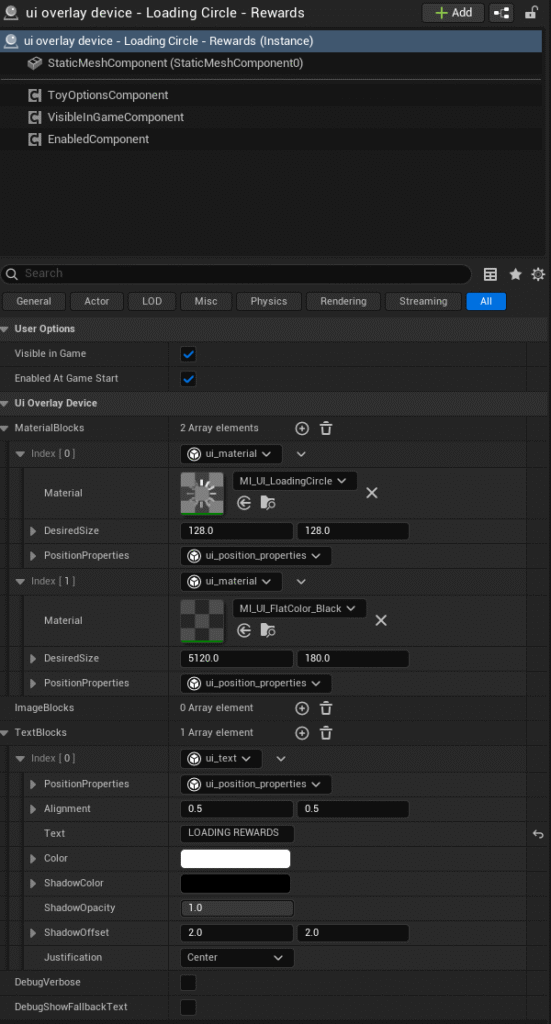
Improving the visuals using material_blocks and material instances (rounded edges, gradient backgrounds, etc.) without having to “Push Changes”
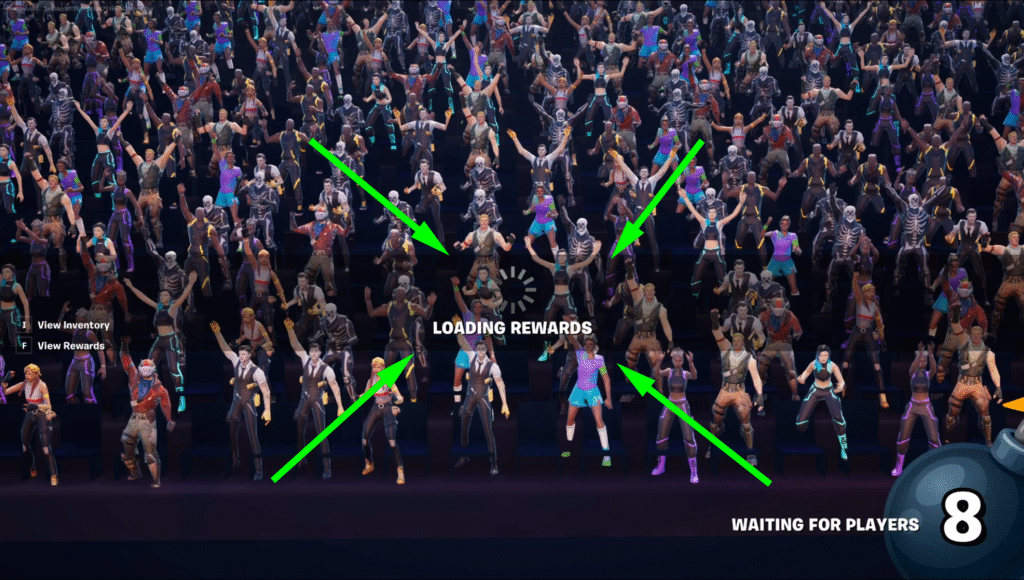
UI Overlay DeviceBomber Blocks – Loading Rewards
UEFN gives you powerful tools — but it’s how you extend them that really matters. I specialize in spotting gaps, optimizing workflows, and building systems that are designed to last. If you’re looking for someone who can not only execute but architect solutions that elevate your team’s efficiency and creativity, let’s talk.